
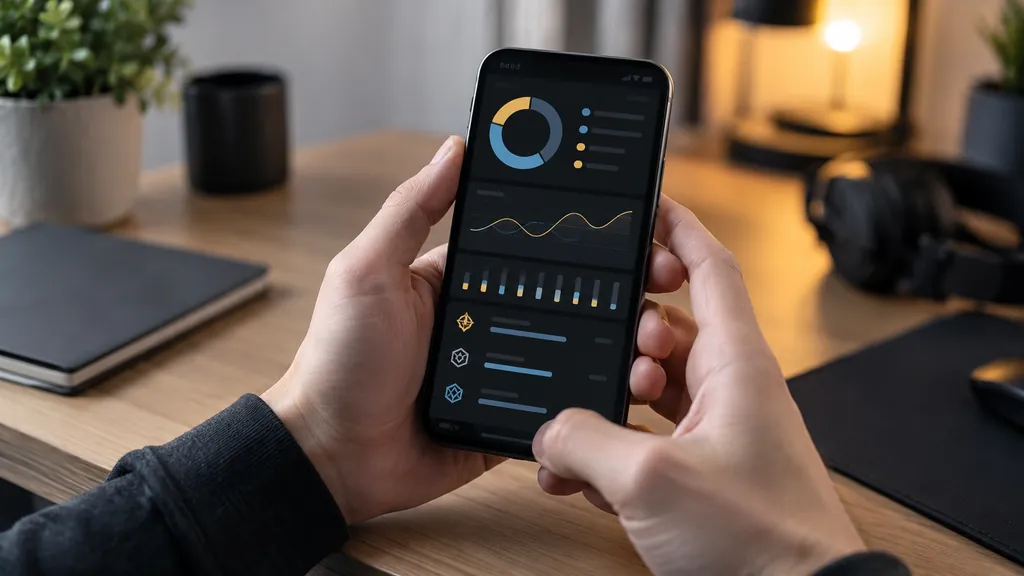
A Siege tracker app that follows you from your gaming PC to your phone to a friend’s laptop sounds like it should need a big install. It doesn’t. The simplest way to track Siege stats anywhere is a tool that lives in your browser, keeps your log in one place, and moves with you when you switch devices.
This guide is about that “anywhere” part. You’ll see how to keep tabs on your numbers whether you play on PC, Xbox or PlayStation, how console players can use a phone as their stats screen, how to pin a site so it opens like an app, and how to move your own log between devices with export and import. No store downloads, no stats app accounts to link, and nothing that touches the game itself.
What a Siege tracker app actually is
Let’s clear up the name first. Siege Tracker, the site you’re on, doesn’t have an app in the App Store or Google Play, and it has no overlay or desktop download. It’s a free website that works in any desktop or mobile browser. When people search for a Siege tracker app, though, they’re usually after a few simple things.
- Quick access from a home screen or taskbar, without typing an address every time.
- Numbers that make sense, such as K/D, win rate, headshot percentage and rank progress.
- A record that survives from one session to the next and from one device to another.
A browser tool can do all three. That’s why we call the homepage season tool our Siege tracker app in everyday terms, even though nothing gets installed. If you want the full rundown of installable options from other developers, our guide to what an R6 tracker download really involves covers the desktop and mobile side, including how to install safely.
It also helps to be clear about what a browser stats app won’t do. It won’t read your matches automatically, it won’t show a scoreboard during a round, and it won’t sit on top of the game. If you want those things on PC, third-party tools exist. For most players, though, logging a few numbers after a session is enough to track Siege stats and see real progress.
How to track Siege stats on every device you use
Most players don’t sit at one screen. You might play Ranked on a PC, check numbers on your phone at lunch and review a bad week on a laptop. Here’s how a browser-based stats app fits each situation.
On a gaming PC
PC players have it easiest. Keep the Siege tracker app open in a browser tab or pinned to the taskbar. After a session, alt-tab out, type in your totals and save a snapshot. Because nothing runs alongside the game, there’s no hit to frame rate and no extra process to worry about.
Console players using a phone
If you play on Xbox or PlayStation, your phone is the natural second screen. Desktop overlays don’t run on consoles, so a mobile browser is the practical way to track Siege stats from the couch. Open the Siege tracker app shortcut on your phone, enter your numbers after the session, and you’re done in under a minute. Our page on checking Xbox and PlayStation Siege stats explains where console players can find those numbers in the first place.
Tablets, laptops and borrowed devices
A tablet is a comfortable way to track Siege stats when you want to review trend charts on a bigger screen. On a laptop you might be catching up at work or school during a break. On a borrowed device, use the stats app to look but don’t save, since your log would stay in that person’s browser. More on that in the export section below.
Make the Siege tracker app a home screen shortcut
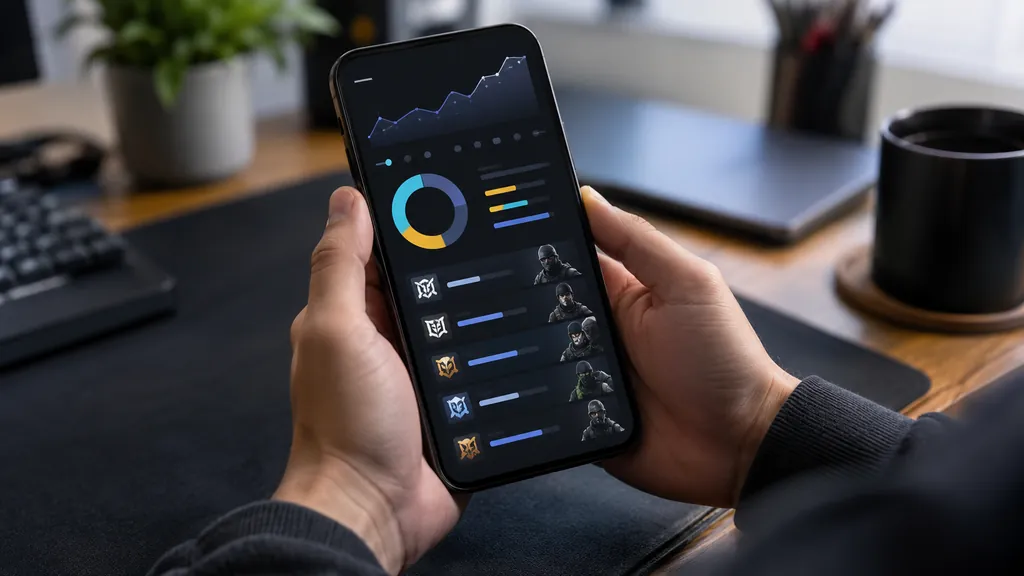
The one thing a real installed stats app has over a website is the icon. You can get that part for free. Browsers let you add a shortcut to your home screen or desktop that opens a site directly. The exact menu names change between browser versions, so treat these as a guide.
- iPhone or iPad in Safari. Open the site, tap the Share button, then choose Add to Home Screen and confirm the name.
- Android in Chrome. Open the site, tap the three-dot menu, then look for Add to Home screen.
- Desktop browsers. Bookmark the page in your bookmarks bar, or use your browser’s option to create a shortcut or pin the tab.
Once the icon is there, it opens the Siege tracker app page in one tap. Nothing is installed, nothing updates in the background, and you can delete the icon like any other shortcut. If you mostly play on console and check from your phone, our step-by-step guide to checking Siege stats on your phone goes further into mobile browser tips.
Where your numbers come from
The Siege tracker app doesn’t pull live data from Ubisoft. You type in your own numbers, which is what makes it work on any device without signing in to anything. So where do those numbers come from? You have a few honest sources.
Ubisoft’s official stats page
Ubisoft runs an official stats page on ubisoft.com. Sign in with your Ubisoft account and check what it shows for your profile. Because you’re signing in on Ubisoft’s own site, this is the one place where entering your Ubisoft login is expected. Never type that password anywhere else.
Post-match screens
After every Ranked match, the post-match report shows how many Rank Points you gained or lost, as described in Ubisoft’s Ranked 3.0 announcement. Scoreboards also show your kills and deaths for the match. Jotting these down per session is the most direct way to track Siege stats without relying on anyone else’s servers.
Third-party trackers you already use
If you check a fan-made tracker website, you can copy totals from there into your stats app. Just remember these sites can miss data or update late, and platform data may not sync instantly. Use the same source every time so your snapshots stay comparable.
Whichever source you pick, the Siege tracker app turns raw totals into K/D (kills ÷ deaths), win rate (wins ÷ (wins + losses) × 100), headshot percentage and kills per round. For a quick one-off calculation without saving anything, the free K/D and win rate calculator is faster.
Syncing your Siege tracker app log between devices
Here’s the honest catch with a browser-based stats app. Your data stays in the browser where you saved it. That’s good for privacy, because nothing goes to a server and there’s no account to hack. It also means your phone and your PC don’t automatically share the same log. Export and import fix that.
Exporting your log
In the Siege tracker app, use the export option to save your snapshots as a file. Do it on the device you use most, ideally at the end of each week or after a big session. Store the file somewhere you control, such as your own cloud drive or a USB stick.
Importing on another device
Open the stats app on the second device, choose import and pick the file you exported. Your snapshots and trend charts appear there too. When you add new sessions on that device, export again and import on the first one. Think of it as carrying your notebook between desks.
Keeping one device as home base
The cleanest habit is to treat one device as the main copy. Log there whenever possible, and only use other devices to view or to add the odd session before syncing back. That avoids two versions drifting apart. If you switch to a new phone, export first, then import on the new one.
A simple routine to track Siege stats anywhere
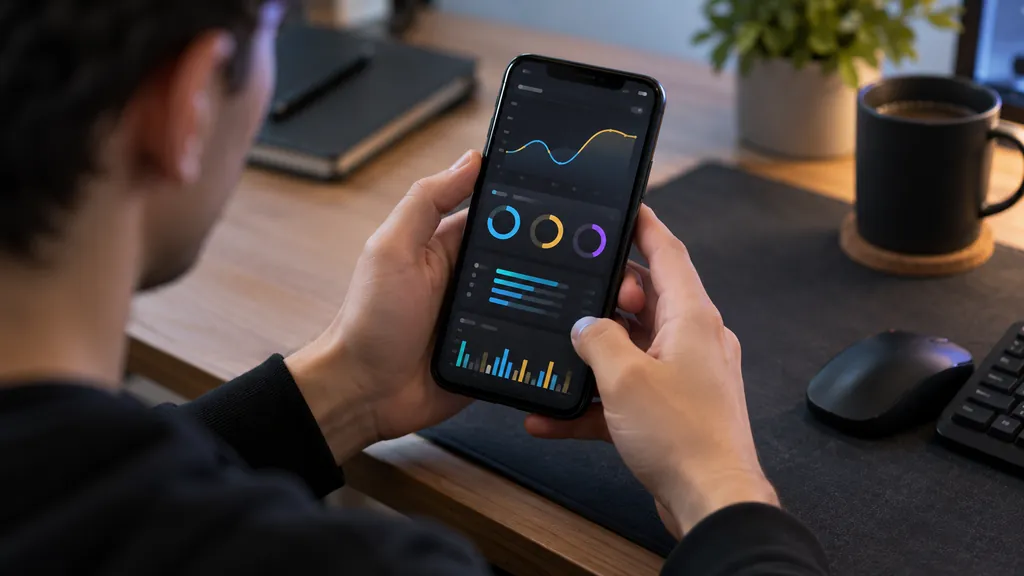
A stats app only helps if you use it consistently. This routine to track Siege stats takes a couple of minutes and works on any device. I’d suggest trying it for two weeks before judging whether it’s useful.
- Snapshot before you play. Save your current totals so the session has a clean starting point.
- Play your normal session. Ranked, Unranked or Quick Match, just stay consistent in what you count.
- Note the post-match RP changes. A quick note on your phone after each Ranked game is enough.
- Snapshot after you play. The tool shows the change between the two snapshots.
- Export once a week. This is your backup and your way to sync to other devices.
For example, say Player A saves a snapshot before a five-match evening, then another after. The session view might show a K/D for the night well above their season average but a lower win rate. That’s a hint they were chasing frags instead of playing the objective. A single number tells you little. The change between snapshots tells you a story. For a wider look at how sessions add up, see our guide on tracking your seasonal performance.
Once your own log is running, it’s fun to see how you stack up against a duo partner. The two-player comparison tool on our leaderboards page puts two sets of numbers side by side. Keep each person’s numbers in their own Siege tracker app log, then compare totals from the same date range. That way you track Siege stats as a pair without mixing anyone’s records together.
What to look for in any stats app
Whether you use our tool or a third-party one, a good stats app should pass a few simple tests. These matter more than flashy charts, and they apply to websites and installed apps alike.
- It never asks for your Ubisoft password. Looking up stats or logging your own numbers doesn’t require it.
- It explains its math. You should know that K/D is kills divided by deaths and that kills per round is kills divided by rounds.
- It lets you leave. You can export or delete your data whenever you like.
- It’s honest about freshness. A tool that copies data from elsewhere should admit it can lag behind.
- It fits your platform. A Windows-only app is no help if you track Siege stats from a PlayStation.
The Siege tracker app on our homepage was built around those tests. It’s not the only good option, and you might pair it with a tracker website you like. The point is to pick tools you understand, so the numbers actually change how you play.
Comparing ways to keep stats with you
There’s more than one way to track Siege stats across devices. This table sums up the honest pros and cons of each approach.
| Approach | Works on | Install | Your own history |
|---|---|---|---|
| Siege Tracker season tool | Any browser | None | Yes, saved snapshots plus export and import |
| Ubisoft’s official stats page | Any browser | None, sign-in needed | Whatever Ubisoft shows |
| Third-party tracker websites | Any browser | None | Depends on the site |
| Tracker Network Overwolf app | Windows PC only | Yes | Match history in the app |
| Third-party phone apps | iOS or Android, check availability | Yes | Depends on the app |
None of these is wrong. Plenty of players combine them, using a tracker website to look up a teammate and their own log to watch personal progress. What a browser stats app adds is portability with nothing to install, which matters most if you hop between devices.
Playing on more than one platform
If you play on both PC and console and want to track Siege stats for each, keep the records separate. Ubisoft’s cross-platform synchronization page explains that items like Renown, R6 Credits, Operators and Battle Pass progress are shared through a linked Ubisoft account. Rank is different. Your console rank is shared across consoles, while PC rank is kept separate.
Mixing PC and console numbers in one log blurs your trend lines, because aim and pace differ between input methods. A simple fix is to use one browser for PC numbers and a different browser for console numbers, since each browser keeps its own data. Export each to its own file and name them clearly. It’s a small habit that keeps your Siege tracker app charts honest.
Mistakes that break your stats log
A Siege tracker app log in your browser is sturdy, but a few habits can wipe it out or make it misleading. Watch for these.
- Logging in a private window. Private or incognito tabs usually discard site data when you close them. Use a normal window.
- Clearing browser data without a backup. Clearing site data removes your snapshots. Export first.
- Switching sources mid-season. If you take totals from one tracker this week and another next week, the jump may be a data difference, not a skill change.
- Mixing modes. Decide whether you’re logging Ranked only or everything, and stick to it.
- Forgetting the start snapshot. Without it, the session change has nothing to compare against.
Season resets also matter. Ranked stats restart each season, while some trackers show lifetime numbers too. Our older post on season versus lifetime stats explains why mixing the two causes confusion.
Siege tracker app FAQ
Is there a Siege tracker app in the App Store or Google Play?
Not from us. Siege Tracker is a free website with no store app, no overlay and no download. You can still give it an app-like icon by adding it to your home screen from Safari or Chrome. Some third-party trackers are described as having phone apps, so check current availability in the official store if you want one.
Can console players use the Siege tracker app?
Yes. Because the stats app runs in a browser, console players can use it on a phone, tablet or computer. Enter your numbers after a session from Ubisoft’s official stats page, your post-match screens or a tracker you trust. Nothing needs to connect to your Xbox or PlayStation, which keeps things simple.
Will my log follow me to a new phone?
Only if you move it. Your stats app data stays in the browser where you saved it. Export your log on the old device, send the file to yourself, then import it on the new one. Do this before you reset or trade in the old phone, or the snapshots will be gone.
Do I need an account or password for this stats app?
No. There’s no sign-up, and Siege Tracker never asks for your password. That includes your Ubisoft password, which you should only ever type on Ubisoft’s own site. Turning on 2-step verification for your Ubisoft account is still a smart move for everything else you do online.
How often should I save snapshots in the Siege tracker app?
Once before and once after each session works well if you want to track Siege stats closely. If that’s too much, a weekly snapshot still shows a useful trend. The key is consistency, so the gaps between snapshots are similar and the changes mean something.
Making the Siege tracker app part of every session
You don’t need an installed program to track Siege stats on every screen you own. Pin the Siege tracker app to your home screen, take numbers from a source you trust, snapshot before and after you play, and export once a week so your log can travel. That covers PC, console players on phones, and anyone who switches devices.
Siege Tracker is independent and not affiliated with Ubisoft, and it never asks for your password. When you’re ready, open the Siege Tracker season tool, save your first snapshot, and add the shortcut to your phone. If you’d like a fuller walkthrough of the whole process, our guide on how to track R6 stats step by step is the natural next stop.