Learn how to track R6 stats accurately and read them with confidence. This Siege Tracker guide shows where your numbers live in-game, which metrics matter most, and how to run them through the Stat Analyzer to see K/D, win rate and headshot % at a glance.
Raw numbers only become useful when you read them the same way every time. Consistent tracking turns scattered matches into clear trends.
See Trends, Not Moods
One great match or one bad night says little about how you actually play. Recording the same Rainbow Six Siege stats at regular intervals shows whether your K/D ratio, win rate and headshot % are genuinely moving, so you judge your performance on evidence instead of the last round you remember.
Spot Weak Areas Early
Tracking reveals patterns that are easy to miss in the moment. A dropping win rate on certain maps, a low headshot % with one weapon, or a K/D that falls in ranked but not in casual all point to specific habits. Catching these early lets you fix them before they cost you a full season of Rank Points.
Measure Rank Progress
Rank alone hides a lot. Two players in the same division can have very different stats behind them. Comparing your rank, RP changes, wins/losses and core metrics season by season gives you an honest picture of rank progression and shows which numbers actually move with it.
Follow these steps to find, record and analyze your Rainbow Six Siege player stats accurately.
Identify the Player 01
Start with the exact Ubisoft name of the player you want to review, whether that is you or a squadmate who shared their numbers. Usernames can be similar, change over time or differ by a single character, so confirm spelling, capitalization and special characters before recording anything. Write the name next to your notes so every session you log refers to the same player profile. You only ever need the public username; nobody needs a password to read stats.
Pick the Platform 02
Note whether the stats come from PC, PlayStation or Xbox. Depending on the season and how an account is set up, progress can be shared across platforms or shown separately, and mixing the two makes comparisons unreliable. Pick one view, label it clearly, and stick with it so your Rainbow Six Siege stats line up from one check to the next.
Find Career & Ranked Stats 03
Open the in-game career or stats screen and switch between the overview, ranked and season filters. Record kills, deaths, wins, losses, headshots and matches or rounds played. Write down which filter you used: ranked-only numbers tell a different story from all-playlist totals. If a value is not shown for your view, leave it blank rather than estimating it.
Review Rank & RP 04
Note your current rank, division and Rank Points (RP), plus your highest rank this season. Remember that RP is gained or lost each ranked match, and that the amount depends on the result and on how your team's rank compares with the opponents'. Rank resets every season, so always record which season a rank belongs to.
Analyze Core Metrics 05
Enter your numbers into the Stat Analyzer on the Player Stats page. It calculates K/D (kills ÷ deaths), win rate (wins ÷ (wins + losses) × 100), headshot % and kills per match directly in your browser. Nothing is stored or sent anywhere. Read each result alongside its sample size: a high K/D over a handful of matches is far less meaningful than a steady one over a full season.
Compare Trends Over Time 06
Repeat the same check after each session block or at the end of each season and compare the results side by side. Look at direction, not single values: is your win rate climbing, is headshot % stable, did K/D drop after switching operators? Keep seasonal and lifetime stats in separate columns so an old season does not hide what is happening right now.
Smart Tracking Tips for R6 Players
Get cleaner, more reliable numbers with these habits used by data-minded Rainbow Six Siege players.
Record at Fixed Intervals
Checking your stats after every match encourages overreaction. A better rhythm is a fixed interval: after every ten ranked matches, once a week, or at the end of each season. Fixed checkpoints give every snapshot a similar sample size, which makes your K/D ratio and win rate comparable from one entry to the next.
Keep a simple log with the date, season, platform, playlist and the raw kills, deaths, wins and losses. Raw values matter more than percentages because you can always recalculate a ratio, but you cannot rebuild missing totals later. A spreadsheet or notes app is enough; the goal is consistency, not complexity.
Seasonal vs Lifetime Stats
Lifetime stats are built from years of matches, so they move slowly and often reflect how you played long ago. Seasonal stats react quickly and show your current form. Track both, but never mix them in the same comparison. If your seasonal K/D is above your lifetime K/D, you are likely improving.
The same rule applies to playlists. Ranked, Standard and Quick Match have different stakes and different opponents, so a stat from one should not be compared directly with a stat from another. Label every entry with its playlist and season and your Rainbow Six Siege stats will tell a far more accurate story.
Check the Sample Size First
Before reading any metric, look at how many matches or rounds sit behind it. Ratios built on small samples swing wildly: a few lucky rounds can double a headshot %. As a rule of thumb, treat early-season numbers as provisional and give more weight to stats that have held steady across many ranked matches.
Define Each Metric Once
Write down how each metric is calculated and use the same definition every time. K/D is kills divided by deaths. Win rate is wins divided by total wins and losses. Headshot % is headshot kills as a share of total kills. When definitions stay fixed, any change you see in your player stats comes from your play, not from how you counted.
Gather these before you analyze anything. You will never need to share a password to track your stats.
Correct Ubisoft Name
The exact username, spelled and capitalized correctly, so every snapshot belongs to the same player profile.
Platform
Which platform the stats come from and which season they cover, so seasonal and lifetime numbers never get mixed.
Available Raw Data
Kills, deaths, wins, losses, headshots and matches played as shown in-game. Leave missing values blank rather than guessing.
Metric Formulas
A fixed formula for K/D, win rate and headshot % so every comparison measures the same thing from one check to the next.
Tracking R6 Stats FAQ
Answers to common questions about tracking Rainbow Six Siege stats, reading your numbers and using the Stat Analyzer.
Do I need my Ubisoft password to track my stats?
No. Tracking only uses numbers you can already see on your career screen or Ubisoft profile. We will never ask for your password, and you should never give it to any stat site, tool or person claiming to need it.
Does Siege Tracker pull my stats automatically?
No. There is no live data feed or account connection. You copy your numbers from the game into the Stat Analyzer, and it calculates your metrics in the browser without storing anything.
Where do I find my Rainbow Six Siege stats in-game?
Open the career or stats section from the main menu. Use the filters to switch between overview, ranked and seasonal views, and note which one you recorded so later comparisons match.
Should I track seasonal or lifetime stats?
Both, kept separate. Seasonal stats show your current form and react quickly to changes. Lifetime stats show long-term habits. Comparing the two tells you whether you are improving or slipping.
How many matches before my stats mean something?
More is always better. As a rule of thumb, treat numbers from your first few ranked matches of a season as provisional and wait for a larger sample before drawing conclusions.
Why does my rank not match my K/D ratio?
Rank Points come from winning matches, and how much RP you gain or lose depends on how your team's rank compares with the other team's. A player with a modest K/D who wins consistently can climb faster than a high-K/D player who loses rounds.
Can I track stats on PlayStation and Xbox too?
Yes. The steps are the same on PC, PlayStation and Xbox. Read the numbers from your in-game career screen, note the platform, and enter them into the Stat Analyzer.
How to Track R6 Stats Like an Analyst | Logs, Cadence and Decisions
Knowing how to track R6 stats well depends on the system behind the numbers, not only the numbers themselves. The steps above show where your data lives. This section shows how to build a log you will keep using, what to record beyond the basics, and how to turn a season of entries into clear decisions about your play.
In this guide
How to Track R6 Stats With a Simple Log
The easiest way to learn how to track R6 stats is to start with one sheet and one row per checkpoint. A spreadsheet, a notes app or a paper notebook all work. What matters is that every row uses the same columns in the same order, so you can scan down a column and see change at a glance.
Column
What to write
Date
The day of the checkpoint
Season and platform
The current season and PC, PlayStation or Xbox
Playlist
Ranked, Standard or Quick Match
Kills and deaths
Raw totals for the block
Wins and losses
Raw totals for the block
Rank and RP
Your rank and Rank Points at the end of the block
Notes
One line on what changed
Keep raw totals in their own cells and let formulas handle the ratios. To check a formula, run the numbers through the K/D & Win Rate Calculator.
Choosing What to Record Beyond the Core Numbers
Kills, deaths, wins and losses tell you what happened. Context tells you why. A big part of how to track R6 stats usefully is adding a few short fields that explain each block of matches, so your Rainbow Six Siege stats are easier to interpret later.
Side split. Note whether you felt stronger on attack or defence that block.
Main operators. List the two or three you played most.
Maps. Write down any map that went badly more than once.
Squad or solo queue. Playing with a regular stack can change win rate more than aim does.
Role. Entry, support, anchor, roamer or flex.
Resist the urge to record everything. If a field never changes a decision, drop it. Five useful columns beat fifteen you abandon. For per-match detail, see the guide to R6 match history.
A simple, consistent log is the foundation of useful stat tracking.
A Tracking Cadence You Can Stick To
Most players who give up on learning how to track R6 stats do so because their routine was too heavy. A two-layer cadence keeps the effort low. After each play session, jot one line in a quick session note with matches played, results and anything that stood out.
Then, at a fixed checkpoint such as every ten ranked matches or every Sunday, add a full row to your main log using the raw totals from your career screen. The session notes explain the row, and the row carries the numbers.
Once a season, write a three-line summary covering what improved, what dropped and what you will focus on next. This rhythm is the core of how to track R6 stats without it becoming a chore, and it gives every checkpoint a similar sample size.
How to Track R6 Stats Across Seasons and Platforms
Seasons are where knowing how to track R6 stats matters most. Ranks reset each season, so a new season should always start a new section in your log. Add a divider row with the season name, then wait until you have played a handful of ranked matches before recording your first checkpoint. Early rows will be noisy, so mark them as provisional.
Platforms need the same care. Depending on how your account and the current season are set up, progress may be shared or shown per platform. If you play on more than one, keep a platform column and never add PC and console totals together unless the game itself presents them combined.
You may also want a fresh section for the Siege X era, which began in 2025, so older habits do not blur current ones. For the reasoning behind keeping these numbers apart, read season vs lifetime R6 stats.
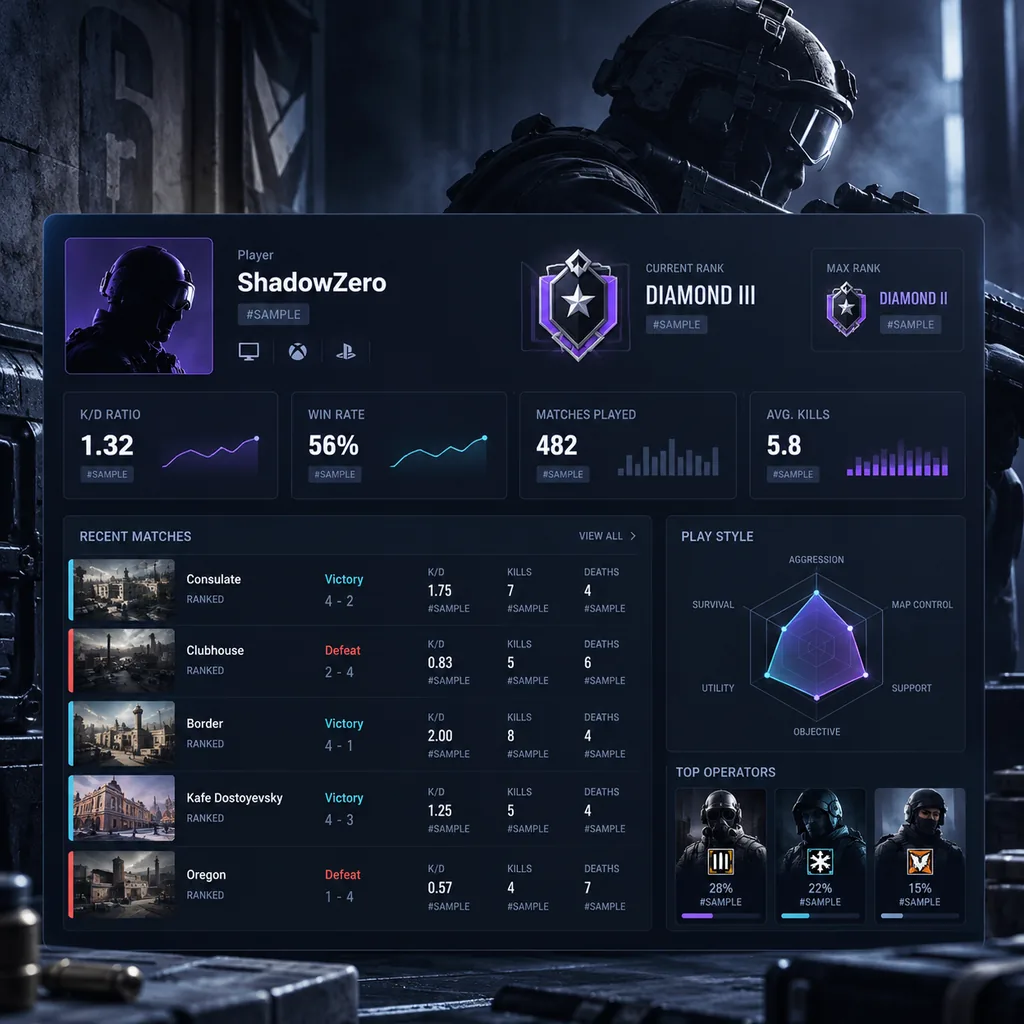
A profile overview shows the raw totals worth copying into your log.
A Worked Example of One Tracking Checkpoint
Here is how one checkpoint might look, using made-up numbers purely as an example. Over ten ranked matches you record 112 kills, 98 deaths, 6 wins and 4 losses. Your K/D is 112 ÷ 98 = 1.14 and your win rate is 6 ÷ 10 × 100 = 60%.
Your previous checkpoint showed 95 kills, 104 deaths, 4 wins and 6 losses, so K/D was 0.91 and win rate 40%. Your notes say you stopped peeking early as an entry and switched to a support operator with more droning.
Ten matches is a small sample, so this is a signal, not proof. The right move is to keep the change for two or three more checkpoints and see whether the trend holds. That patience is a big part of how to track R6 stats honestly. You can enter each checkpoint into the Stat Analyzer to get the ratios instantly.
Turning Your Tracking Log Into Decisions
A log only pays off when it changes what you do next. Before each checkpoint, write one question you want the data to answer, such as whether your win rate holds when you play anchor, or whether your headshot % drops with one weapon. Then read the new row with that question in mind.
Change one thing at a time. If you switch operator, sensitivity and role in the same week, you cannot tell which change mattered.
Set a review point. Decide in advance how many checkpoints you will give a change before judging it.
Act on direction, not single rows. Two or three rows moving the same way is worth acting on. One row is not.
Knowing how to track R6 stats is half the job. When the data points to a habit, pair it with practical work from the guide on how to improve R6 stats.
Keep season and lifetime numbers in separate columns so trends stay clear.
Manual Tracking vs Automatic Stat Trackers
Automatic third-party trackers read public profile data and display it for you, often with match history, charts and leaderboards. They save time and can show more detail than you would log by hand. The trade-offs are that definitions can differ from site to site, and figures may lag behind or differ from your career screen.
A manual log is slower but fully under your control. You choose the definitions, you add context like role and squad, and you never depend on someone else’s data pipeline. Siege Tracker has no live data feed or Ubisoft API access, which is why it focuses on helping you read Rainbow Six Siege stats rather than pulling them.
Using both works well: an automatic tracker for quick lookups and a personal log for decisions about how to track R6 stats and what to change. Our data accuracy page explains why figures can differ between sources.
How to Track R6 Stats Without Common Mistakes
Logging ratios instead of totals. You can always rebuild a ratio from totals, but never the other way round.
Mixing playlists. A Quick Match night can inflate K/D and hide a ranked slump.
Checking after every match. Single games swing too much and push you into overreacting.
Skipping bad weeks. Leaving out rough checkpoints makes the log flattering and useless.
Changing definitions mid-season. If you switch from rounds to matches as your base, earlier rows no longer compare.
Ignoring rank context. A flat K/D while you climb into tougher lobbies can actually mean you are improving.
Avoiding these mistakes is what separates a log you trust from a list of numbers. If you want a ready-made place to keep checkpoints as you track R6 stats, the Siege Tracker season tracker saves snapshots in your own browser, so nothing leaves your device.
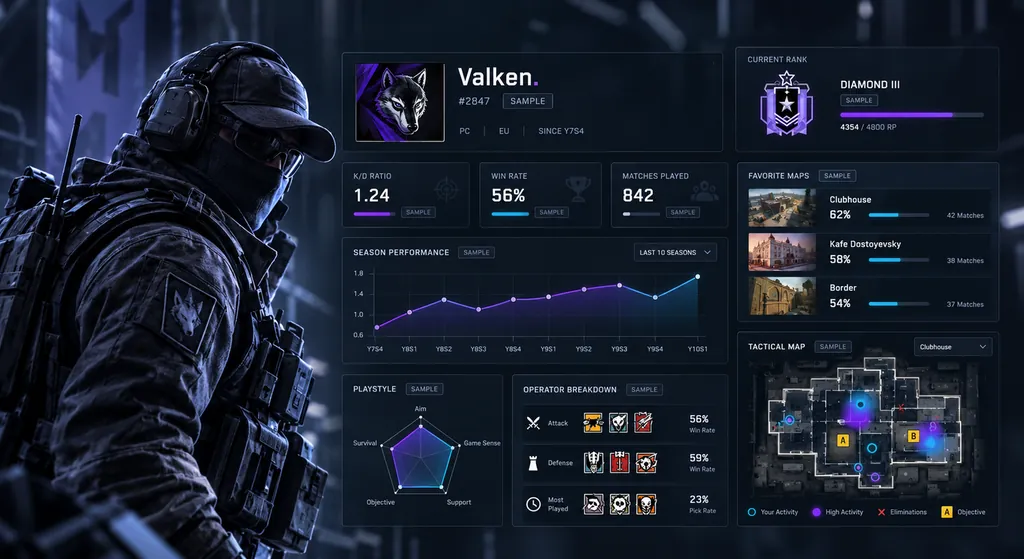
Metric panels make it easy to compare one checkpoint with the next.
Keeping Your Tracking Data Safe and Private
Learning how to track R6 stats should never put your account at risk. Every number you need is visible on your career screen, so no tool, spreadsheet template or person ever needs your password. Treat any site or message asking for login details to sync or verify your stats as a red flag.
Finally, think about where your log lives. A local spreadsheet or browser snapshot stays with you, while a shared online sheet can be opened by anyone with the link. Once that is sorted, you know how to track R6 stats safely, consistently and in a way that shapes your next season.
Start Tracking Your R6 Stats Today
Open the Siege Tracker Stat Analyzer, enter the numbers from your career screen and see your K/D, win rate and headshot % in seconds. Nothing is stored, and we will never ask for your password.